How to use HealthShree
Everything you need for your OPD: seeing patients, writing and printing prescriptions, running the walk-in queue with your staff, and setting HealthShree up the way you work.
Quick start: your first prescription
Five steps from sign-up to a printed prescription.
If you only read one part of this guide, read this. Everything else adds detail.
- Create your account and finish the 3-step setup: your registration details, your clinic, and (optionally) the companies whose brands you prescribe. Section 1
- On Today, choose Start consultation and type the patient's 10-digit mobile number, then the name. Section 2
- On the pad, tap a complaint chip such as + Fever, then type a medicine (for example "Dolo 650"), press Enter and tap 1 tab, 1-0-1 BD and 5 days. Section 3
- Choose Preview to check the page, then Finish & save. Section 4
- Choose Print, or Share on WhatsApp to send it to the patient's phone.
1. Getting started
Account, the 3-step setup, approval, and the Today screen.
Use a laptop or desktop with Google Chrome for daily OPD work. Everything also works on a phone, but the consultation pad is easiest on a bigger screen.
Create your account
- Open HealthShree and choose Doctor Login, then the Create account tab.
- Enter your full name, mobile number, email and a password. Type your name without "Dr.": the Dr. is added for you and always prints in front of your name.
- Tick the consent box and choose Create account.
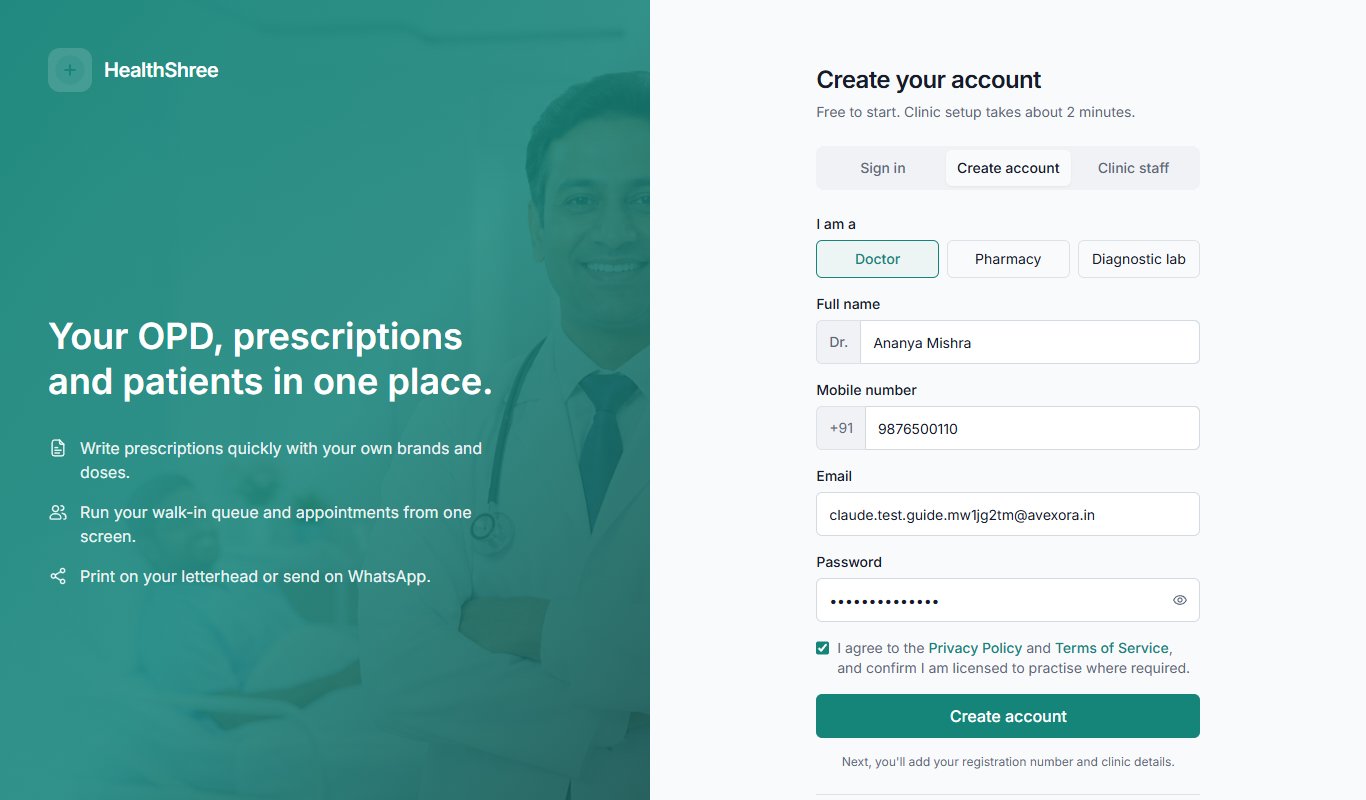
Next time, sign in on the Sign in tab with the same email and password. Forgot it? Type your email and tap Forgot password? to get a reset email.
Finish the 3-step setup
| Step | What you enter | Why it matters |
|---|---|---|
| 1. About you | Mobile, specialty, qualifications, registration number, medical council, years of experience (optional) | Printed on every prescription. Your specialty also decides your specialty kit on the pad. |
| 2. Your clinic | Clinic name, address, consultation fee (optional), practice type | Fills your letterhead. You can add more clinics later. |
| 3. Medicines you prefer | Companies whose brands you prescribe most (optional) | Their brands come first when you search a medicine. Choose Skip for now if unsure. |
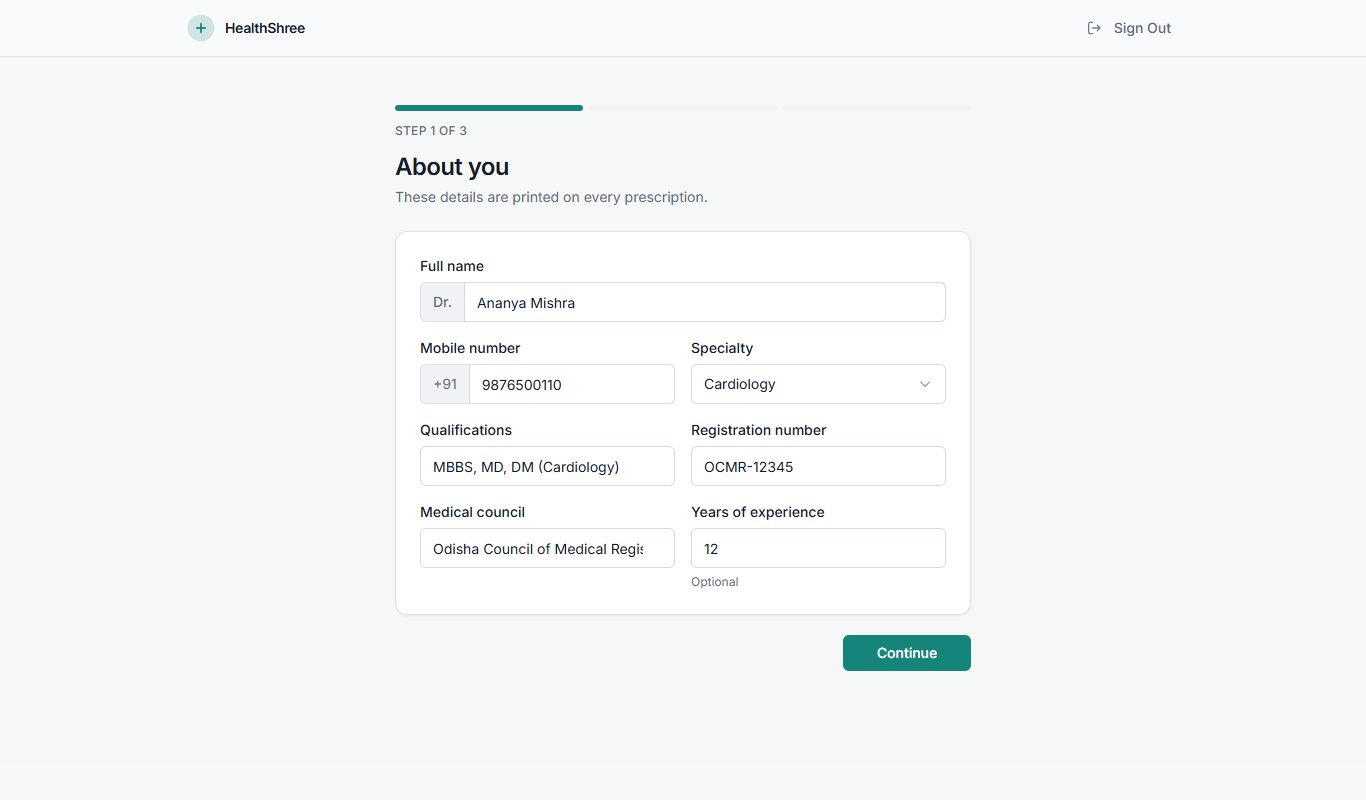
Choose Finish setup at the end.
Approval
Each new doctor account is checked before it can be used: the HealthShree team confirms your registration number with your medical council. Until then you see a pending review screen. Sign in again later or tap Check again. No email is sent when you are approved.
The Today screen
After signing in you land on Today, your home for the OPD day.
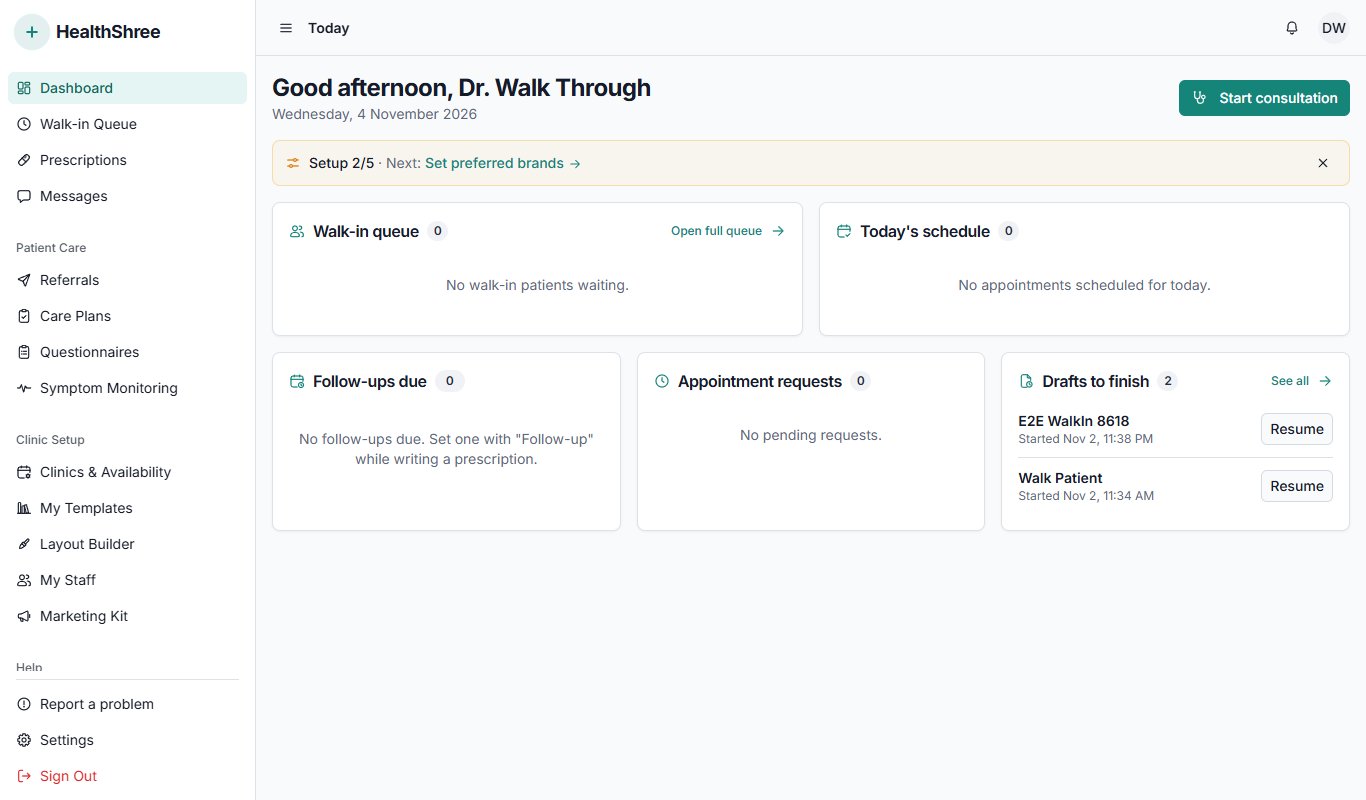
- Start consultation, top right, is the main button.
- The Setup strip (for example "Setup 2/5 · Next: Set preferred brands") lists five things worth doing once: complete your profile, add clinic and availability, set preferred brands, check your prescription layout, and add pharmacy and lab links. Close it with × when done.
- Five cards: Walk-in queue, Today's schedule, Follow-ups due, Appointment requests and Drafts to finish.
Where everything is
The menu on the left (on a phone, More at the top, plus the bar at the bottom) has every page:
| Menu item | What it is for | Section |
|---|---|---|
| Dashboard (Today) | Your OPD day at a glance | 1 |
| Walk-in Queue | Patients waiting at the clinic | 5 |
| Prescriptions | Every prescription and draft; print or repeat | 4 |
| Messages | Chat inside HealthShree | 9 |
| Referrals, Care Plans, Questionnaires, Symptom Monitoring | Ongoing care | 9 |
| Clinics & Availability | Your clinics and working hours | 6 |
| My Templates | Saved prescriptions you reuse | 8 |
| Layout Builder | How your printed prescription looks | 7 |
| My Staff | Logins for your front desk | 5 |
| Marketing Kit | Posters, posts and your visiting card | 10 |
| Help & Guide | This guide | |
| Settings | Profile, preferences, your data | 8, 11 |
Some specialties also get a Specialty Tools group, for example a vision test for ophthalmology or a dental chart for dentistry.
2. Seeing a patient
Start by mobile number; pick the right family member.
Every visit starts with the patient's mobile number. HealthShree finds anyone already on that number, so returning patients come with their history.
Start a consultation
- On Today, choose Start consultation.
- Type the 10-digit mobile number (+91 is already there).
- If nobody is on that number yet, type the patient's name, and age and gender if you want them on the prescription.
- Choose Start. The consultation pad opens.
When a family shares one number
In many families the whole household uses one phone. If the number already has people on it, you see "N patients share this number. Pick who is visiting." with each person's name and age.
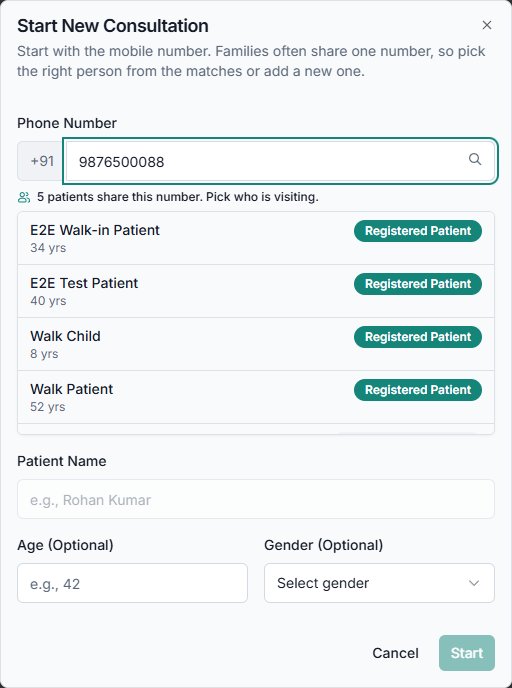
- Tap the person who is in front of you, or
- choose Add another person on this number and type the new person's name and age.
Why Start is greyed out
Start stays disabled until you pick someone or add a new person, so a child's visit never lands in a parent's record by mistake. If you pick someone and then change the name, HealthShree treats it as a new person on that number.
Other ways to open a visit
| From | What happens |
|---|---|
| Walk-in queue → Consult | Opens the pad with anything your desk recorded, such as BP and the reason for the visit (section 5). |
| Today → Drafts to finish | Reopens a visit you started but didn't finish. Drafts are saved as you work. |
| Prescriptions → Repeat | Starts a new visit with the same medicines, ready to adjust. |
3. The consultation pad
Complaints to follow-up, section by section, with chips.
The pad is one page you fill top to bottom, skipping whatever a visit doesn't need. To save, it needs at least one of: a medicine, a diagnosis, an examination or procedure finding, a test, or advice. Most fields have one-tap chips, so you type far less than on paper.
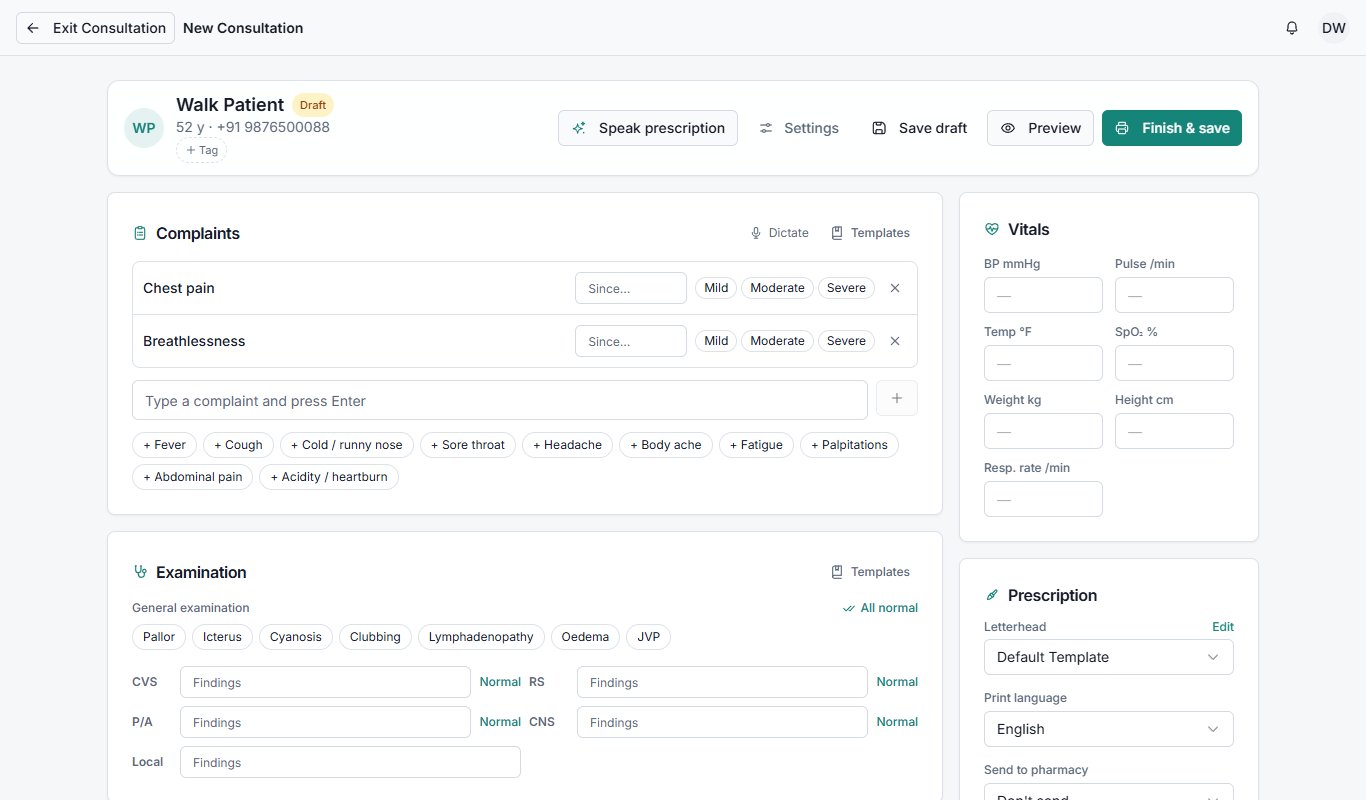
At the top, the patient bar shows name, age, phone and any known allergies (in red), with Save draft, Preview and Finish & save. You never need to leave the pad: Settings opens a side panel for anything you would otherwise change on another page.
Complaints
Type a complaint and press Enter, or tap a chip such as + Fever or + Chest pain. For each complaint you can add how long ("Since…") and Mild, Moderate or Severe. Templates fills a saved set in one tap; Dictate lets you speak (section 12).
Examination
Tap the general findings you see (Pallor, Icterus, Cyanosis, Clubbing, Lymphadenopathy, Oedema, JVP), or All normal. Write findings for CVS, RS, P/A and CNS, or tap Normal beside each. Add anything local under Local.
Your specialty kit
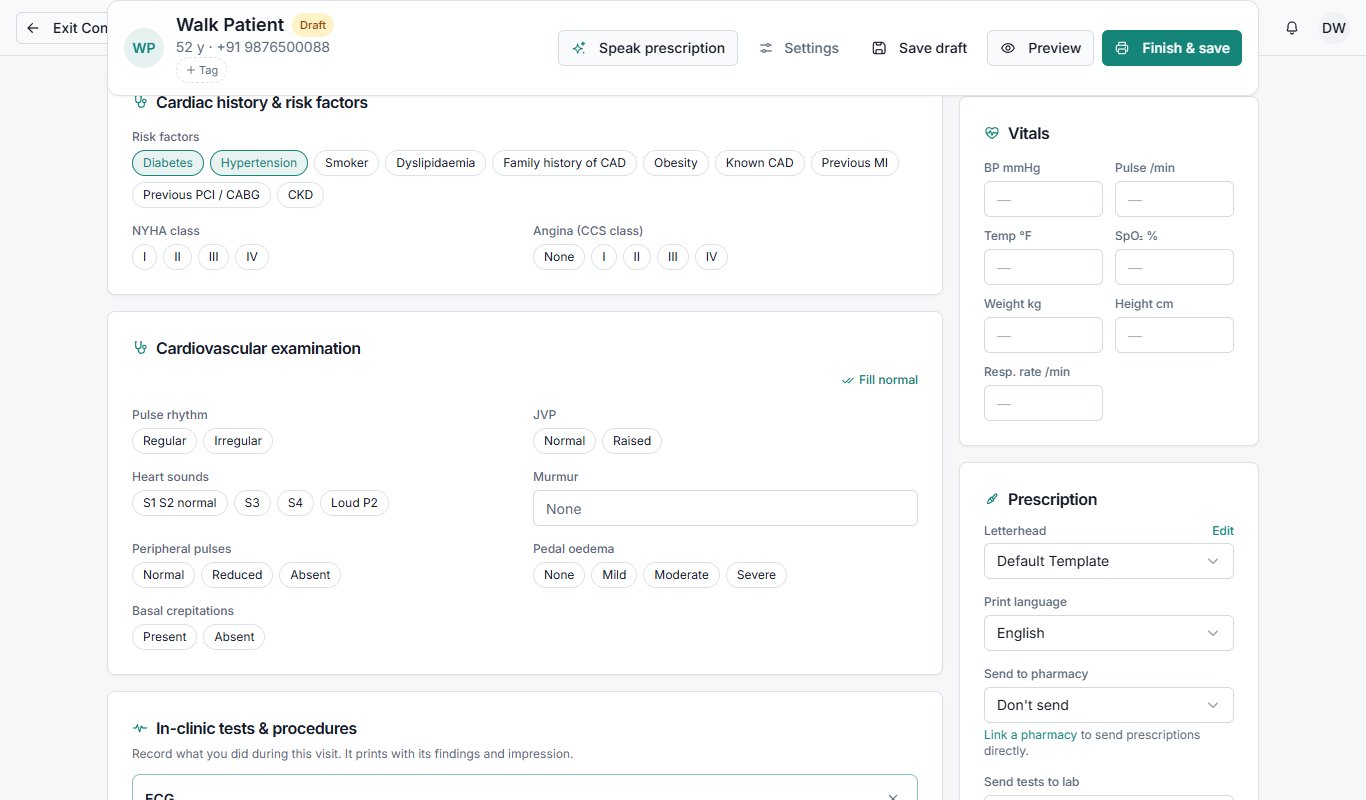
Your specialty adds its own sections and in-clinic procedures. A cardiologist, for example, gets Cardiac history & risk factors (risk factor chips, NYHA and CCS class) and Cardiovascular examination, and can record an ECG, 2D Echo, TMT or Holter.
| Specialty | Extra sections | In-clinic procedures |
|---|---|---|
| General Physician | none (common forms only) | ECG, point-of-care tests, nebulisation, injection, dressing |
| Cardiology | Cardiac history & risk factors, cardiovascular examination | ECG, 2D Echo, TMT, Holter / ABPM |
| Ophthalmology | Eye examination | Refraction, visual field, OCT |
| Dentistry | Dental chart | Scaling, extraction, RCT, filling, IOPA |
| Gynaecology | Obstetric & gynaecological history, pelvic examination | ANC visit, obstetric USG, point-of-care tests |
| Pediatrics | Growth | Vaccination, nebulisation, point-of-care tests |
| ENT | ENT examination | Audiometry, tympanometry, ENT endoscopy |
| Orthopedics | Joint examination | X-ray, joint injection, immobilisation, dressing |
| Dermatology | Skin examination | KOH, cautery, skin biopsy |
| Pulmonology | Respiratory examination | Spirometry, nebulisation, point-of-care tests |
| Psychiatry | Mental status examination | PHQ-9, GAD-7 |
| Neurology | Neurological examination | ECG, point-of-care tests |
| Endocrinology | Diabetes review | Point-of-care tests, ECG |
| Gastroenterology | Abdominal examination | Endoscopy, point-of-care tests |
| Nephrology | Renal review | Point-of-care tests, ECG |
| Urology | Urological examination | Uroflowmetry, point-of-care tests |
| Rheumatology | Disease activity, joint examination | Joint injection, point-of-care tests |
| Oncology | Oncology status | Injection, point-of-care tests |
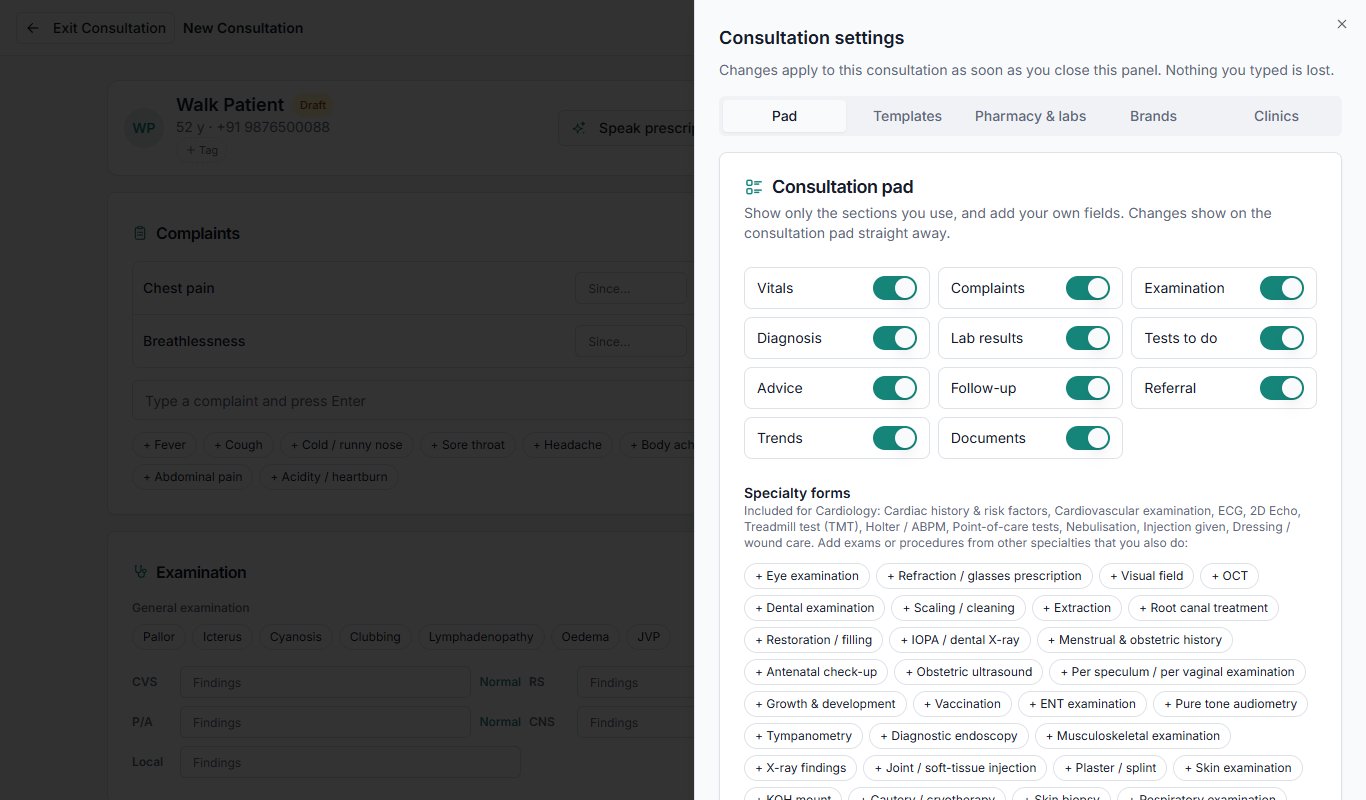
Any specialty can also use the common procedures such as an injection given or a dressing. To add a section from another specialty, or hide one you never use, open Settings → Pad on the pad.
In-clinic tests and procedures
Tap a procedure (for example + ECG) to record what you did during this visit: heart rate, axis, ST-T changes and so on. It prints on the prescription with its findings and your impression.
Diagnosis and lab results
Search a diagnosis or type your own. Under Lab results, tap a test (FBS, PPBS, HbA1c, TSH, serum creatinine, lipids, vitamin D and others) to note a value the patient brought.
Medicines
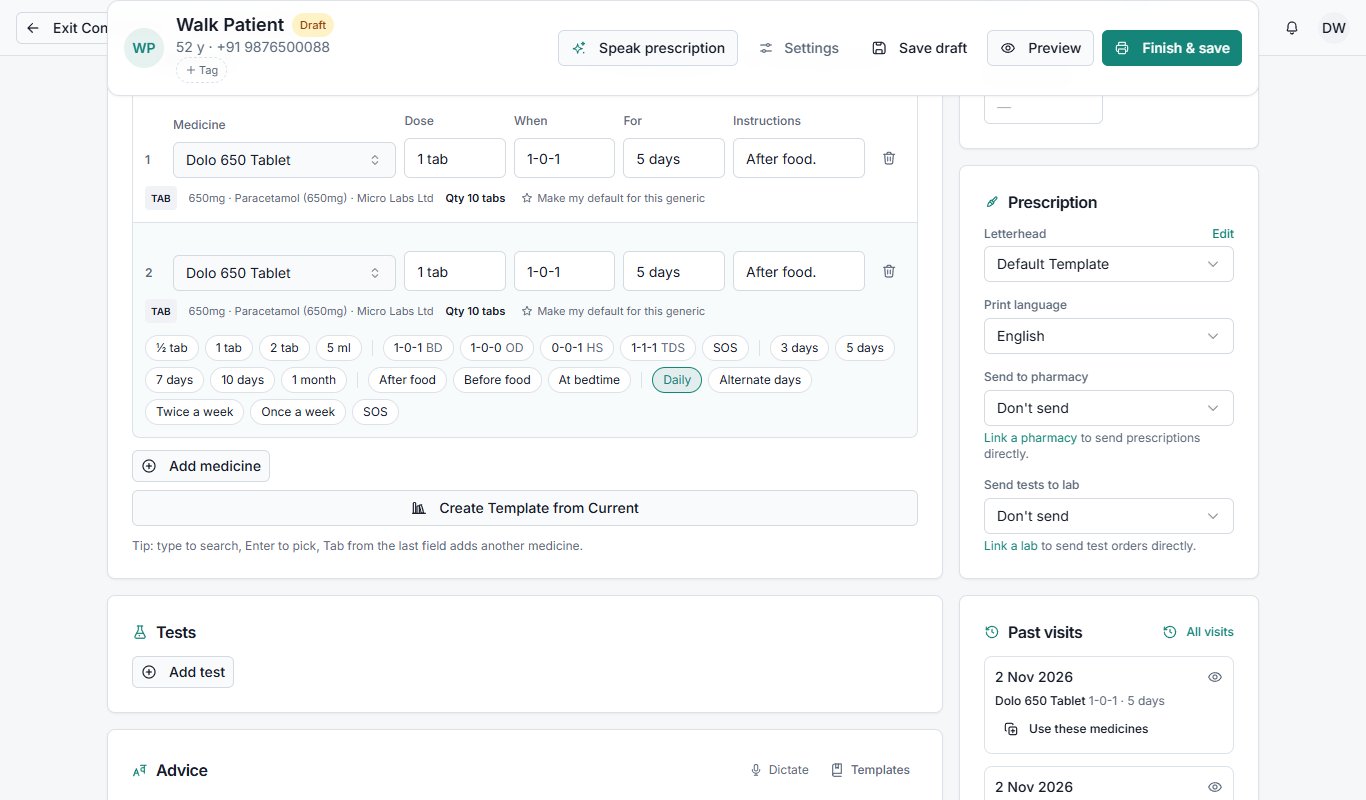
- Click the medicine box and type a brand or generic name, for example "Dolo 650". Brands from your preferred companies come first.
- Press Enter to pick the highlighted result. The strength, generic and company appear under it.
- Set the dose with chips, or type any value.
- Press Tab from the last field, or choose Add medicine, for the next one.
| Chip | Meaning |
|---|---|
| ½ tab, 1 tab, 2 tab, 5 ml | Dose per time |
| 1-0-1 BD | Morning and night |
| 1-0-0 OD | Once a day, morning |
| 0-0-1 HS | At bedtime |
| 1-1-1 TDS | Three times a day |
| SOS | Only when needed |
| 3 days … 1 month | Duration |
| After food, Before food, At bedtime | Instructions |
| Daily, Alternate days, Twice a week, Once a week | How often (for medicines not taken every day) |
Each medicine needs a dose, a timing and a duration before you can finish.
- Your usual dose: HealthShree remembers how you prescribe each medicine and suggests it next time.
- Make my default for this generic makes a brand your first choice for that generic.
- Templates: Create Template from Current saves this set of medicines; Add from template adds a saved set on later visits.
- Not in the list? Type the name and add it yourself. You can prescribe it at once; other doctors see it after a HealthShree admin approves it.
Safety warnings
As you add medicines, HealthShree warns you about a duplicate medicine, a match with the patient's recorded allergies, and known interactions between the medicines on this prescription.

Silence is not the same as safe
Interaction data covers only some medicines. When the pad says "Interaction data not available for …", check those yourself. Dose checks for age, weight, kidney function and pregnancy are not done (section 12).
Tests, advice and follow-up
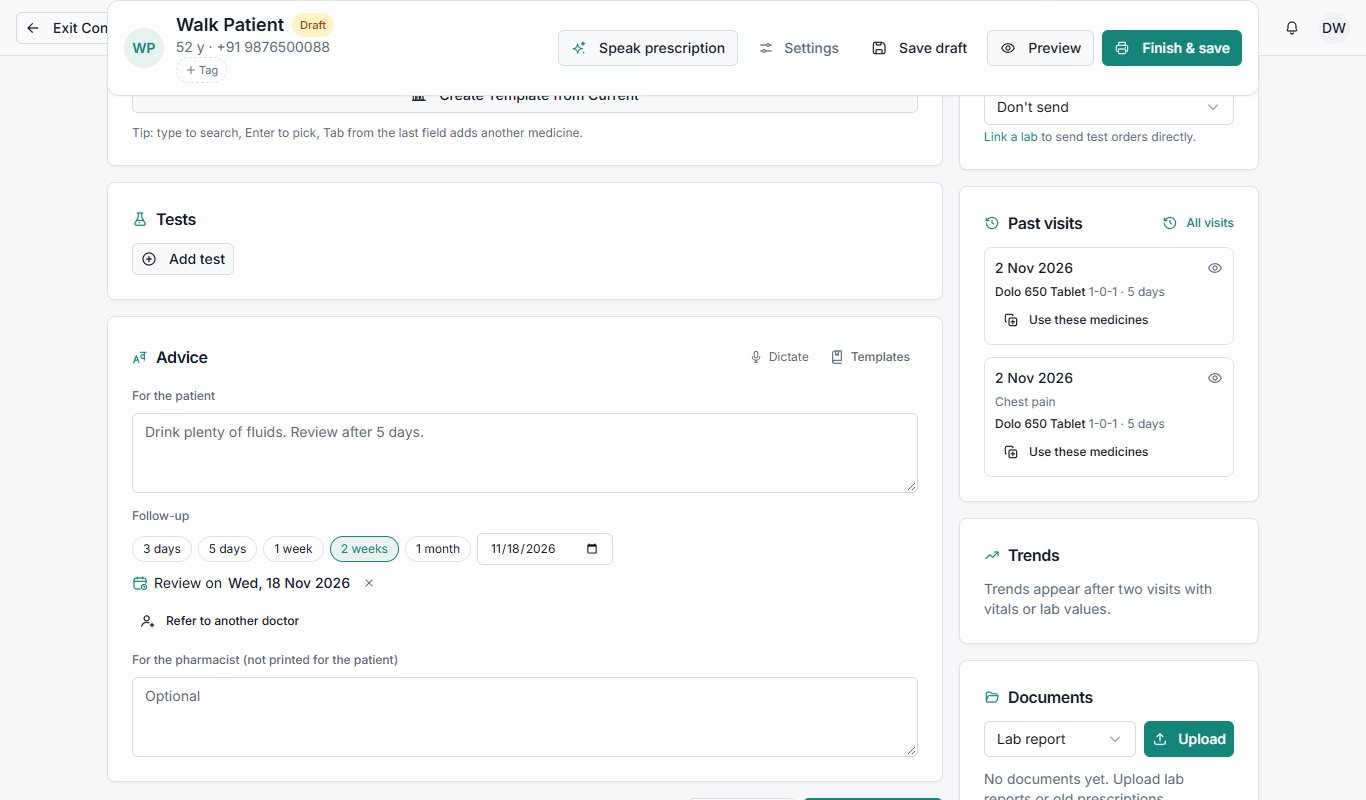
- Tests: choose Add test for investigations to be done.
- Advice: free text for the patient, with Templates and Dictate.
- Follow-up: tap 3 days, 5 days, 1 week, 2 weeks or 1 month, or pick a date. The patient then appears under Follow-ups due on Today on that day.
- Refer to another doctor adds a referral (section 9).
- For the pharmacist: a note that goes to the pharmacy but is not printed for the patient.
Vitals and the Prescription card
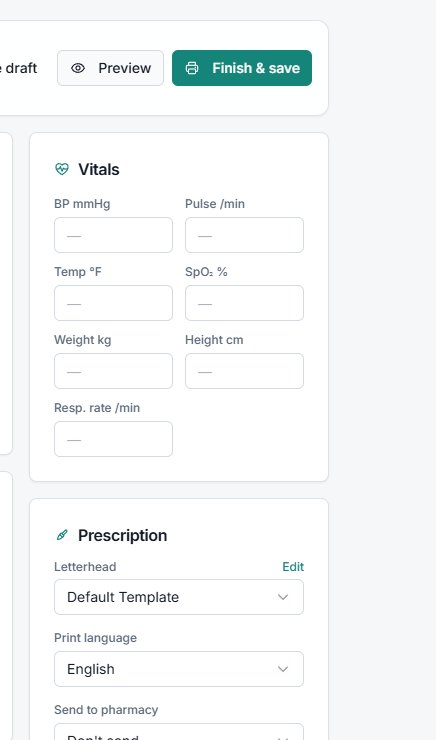
On the right: BP, pulse, temperature, SpO₂, weight, height and respiratory rate. Empty boxes show a dash and nothing prints for them. Values your staff entered at the desk are already filled in. Below them, the Prescription card chooses the letterhead, print language and where the prescription is sent (section 4).
Save as you go
Your work is saved as a draft while you write. Save draft saves it immediately, so you can see another patient and come back from Drafts to finish.
Keyboard flow
Enter adds a complaint. In the medicine box, Enter picks the highlighted result. Tab from the last field of a medicine starts the next one. You can write a whole prescription without touching the mouse.
4. Finishing the visit: print, share, send
Preview, print languages, WhatsApp, edits and history.
Preview, then Finish & save: the prescription is saved to the patient's record and you can print it or send it on WhatsApp straight away.
Before you finish: the Prescription card
| Setting | Choices | What it does |
|---|---|---|
| Letterhead | Your layouts (default: "Default Template") | Which design prints. Edit opens the Layout Builder (section 7). |
| Print language | English, हिन्दी (Hindi), ଓଡ଼ିଆ (Odia), বাংলা (Bengali) | Headings print in English and the chosen language; timing and instructions are translated. Medicine names stay in English. |
| Send to pharmacy | Don't send, or a linked pharmacy | The pharmacy receives the prescription in HealthShree (section 9). |
| Send tests to lab | Don't send, or a linked lab | The lab receives the test order. |
Preview and print
- Choose Preview to see the page exactly as it will print. Change Paper (A4 or A5) and Zoom at the bottom.
- Choose Print in the preview, or close it and choose Finish & save.
- After saving you see "Prescription saved for …" with Print, Share on WhatsApp, Edit, History and Repeat for new visit.
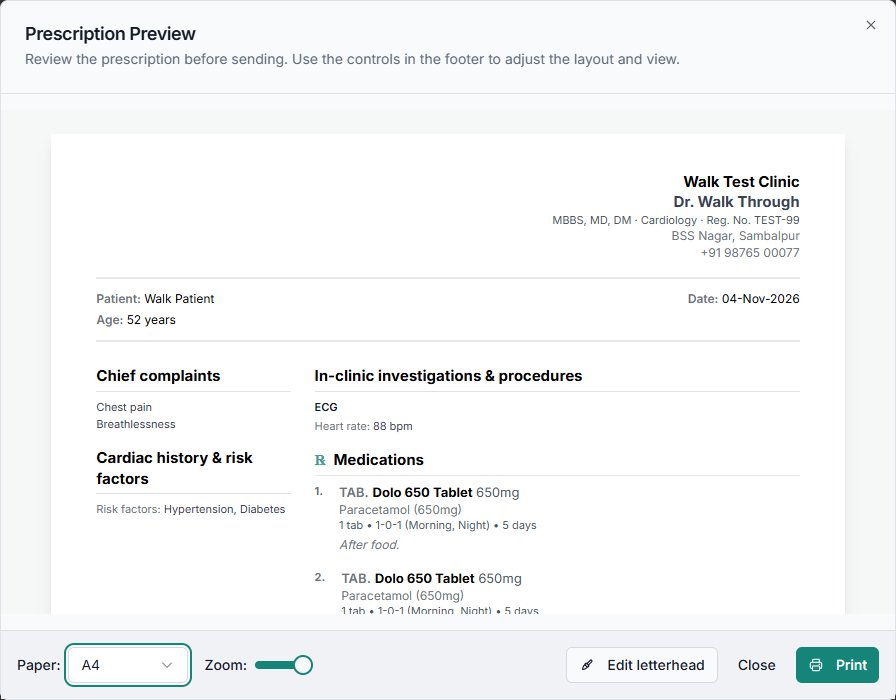
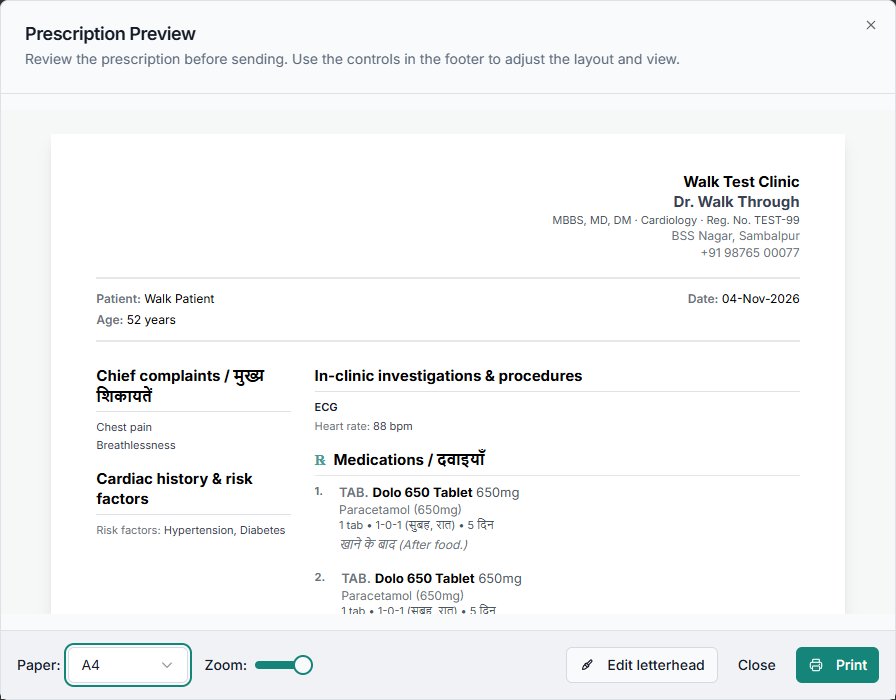
The printed page carries your letterhead, the patient's name, age and date, then complaints, findings, procedures, diagnosis, medicines, tests and advice, with your name above Signature at the bottom.
Sign printed prescriptions by hand
HealthShree does not add a digital signature, and never prints that a prescription is "digitally signed".
Print does nothing?
Printing opens a separate print window. If nothing appears, your browser blocked it: allow pop-ups for HealthShree (Chrome shows an icon at the right end of the address bar) and try again.
After saving
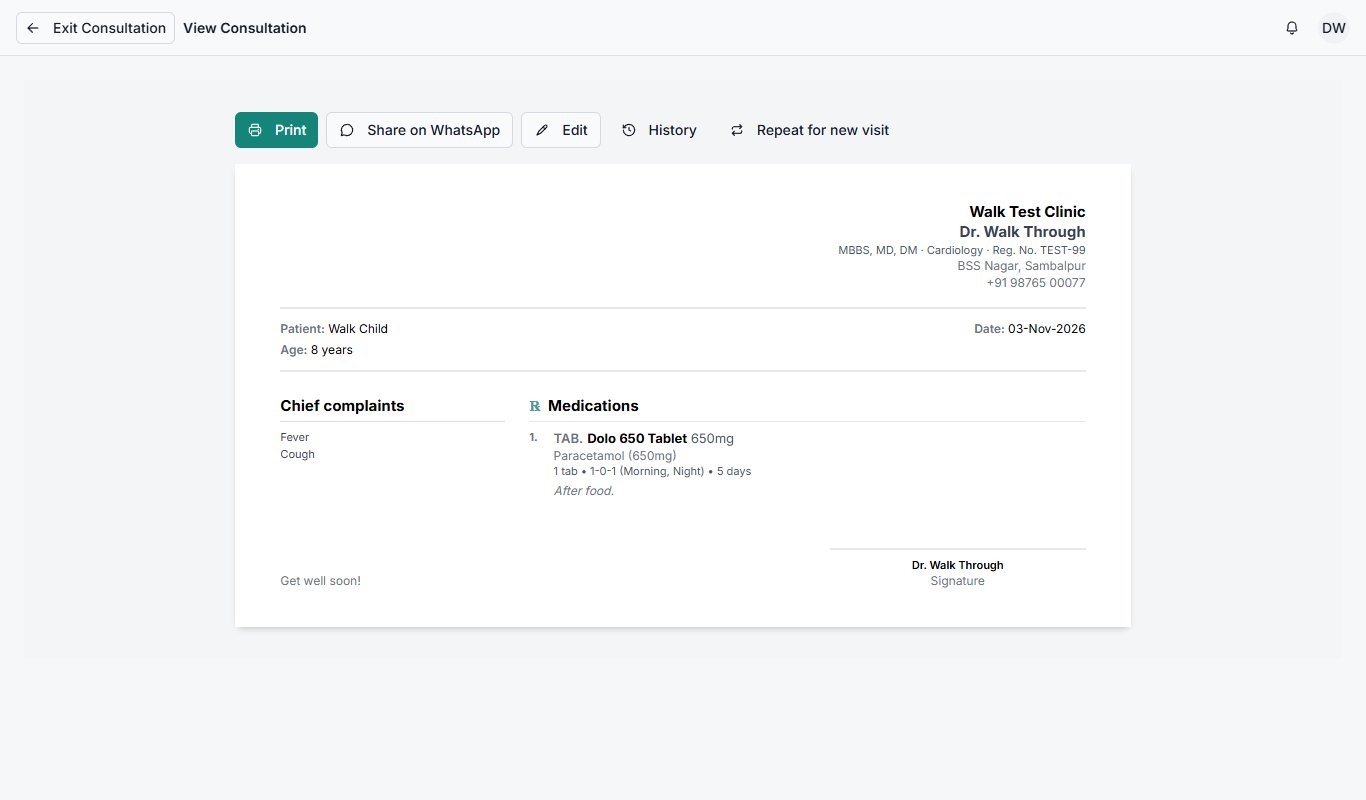
- Share on WhatsApp opens WhatsApp on your phone or computer with a message to the patient's number: the diagnosis, each medicine with its timing, tests, advice and the follow-up date. Check it and press send in WhatsApp.
- Edit reopens the prescription on the pad; the button reads Save changes.
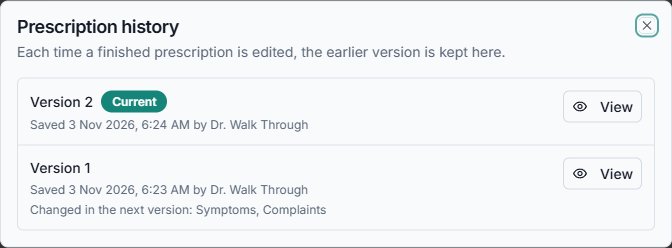
- History lists every earlier version with who saved it and when, and what changed. Nothing is ever overwritten silently.
- Repeat for new visit starts a new visit with the same medicines.
The Prescriptions page
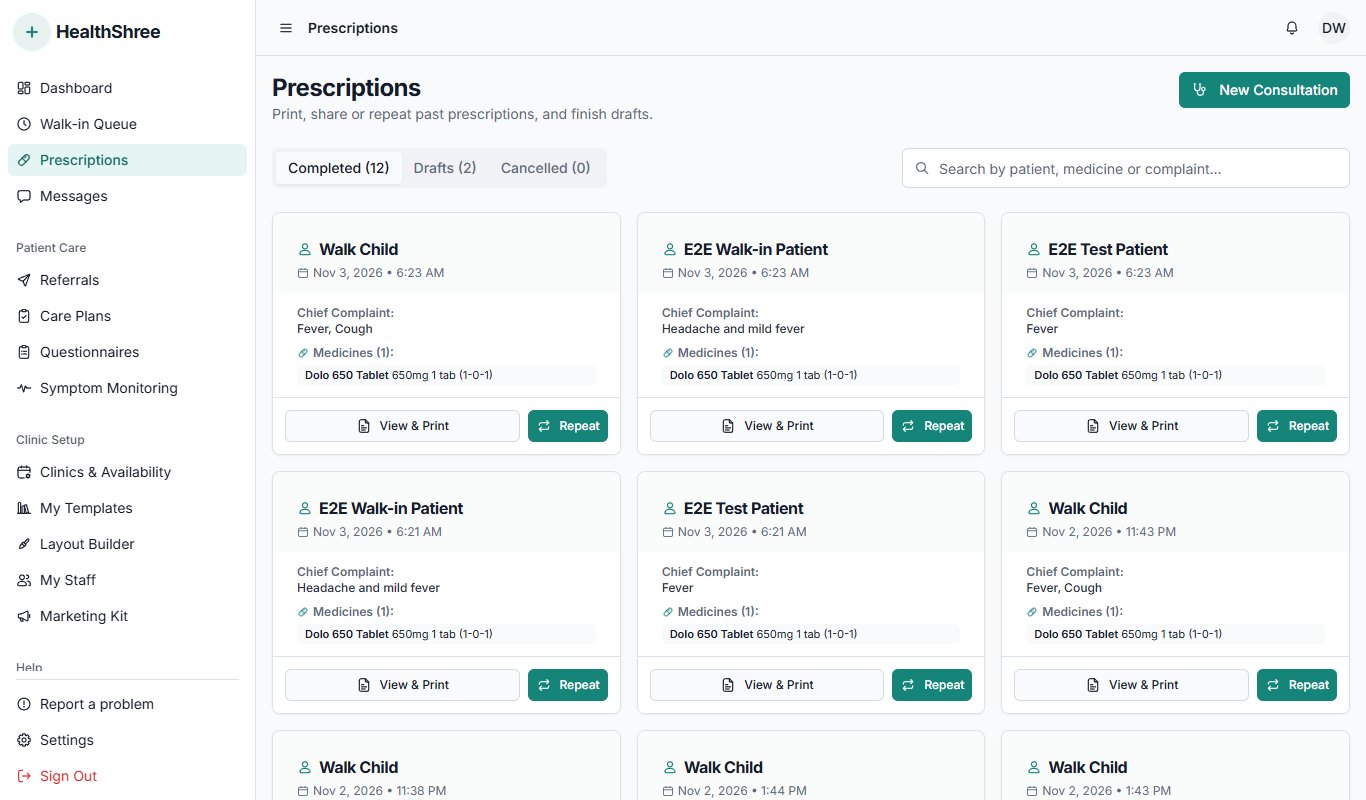
Prescriptions in the menu lists your Completed prescriptions, Drafts and Cancelled visits. Search by patient, medicine or complaint, then choose View & Print or Repeat.
5. Walk-in queue and clinic staff
Staff logins, adding walk-ins, vitals at the desk, Consult.
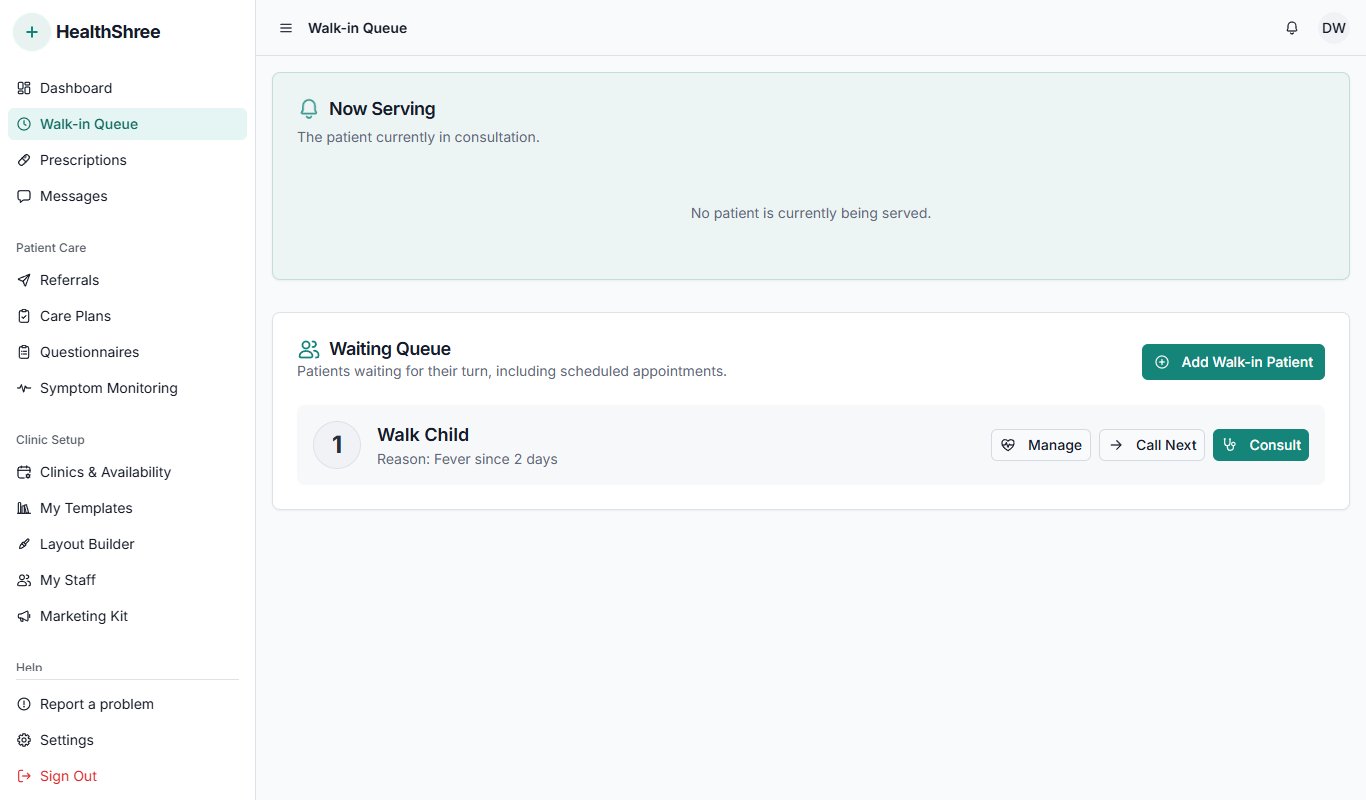
Your front-desk staff add patients and record vitals; you see who is waiting and open each one with Consult, with the desk's details already on the pad.
Give your staff a login
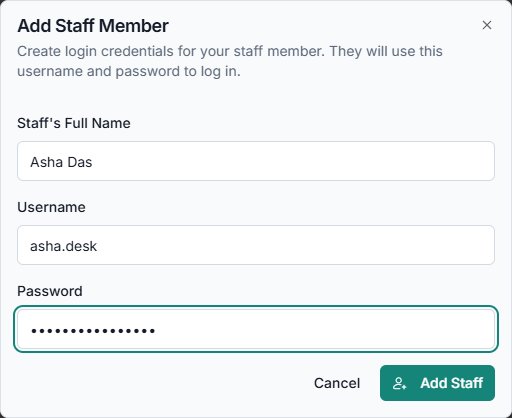
- Open My Staff and choose Add Staff.
- Enter their full name, a username (for example "asha.desk") and a password of at least 8 characters, then Add Staff.
- Ask them to open HealthShree, choose Doctor Login, then the Clinic staff tab, and sign in with that username and password.
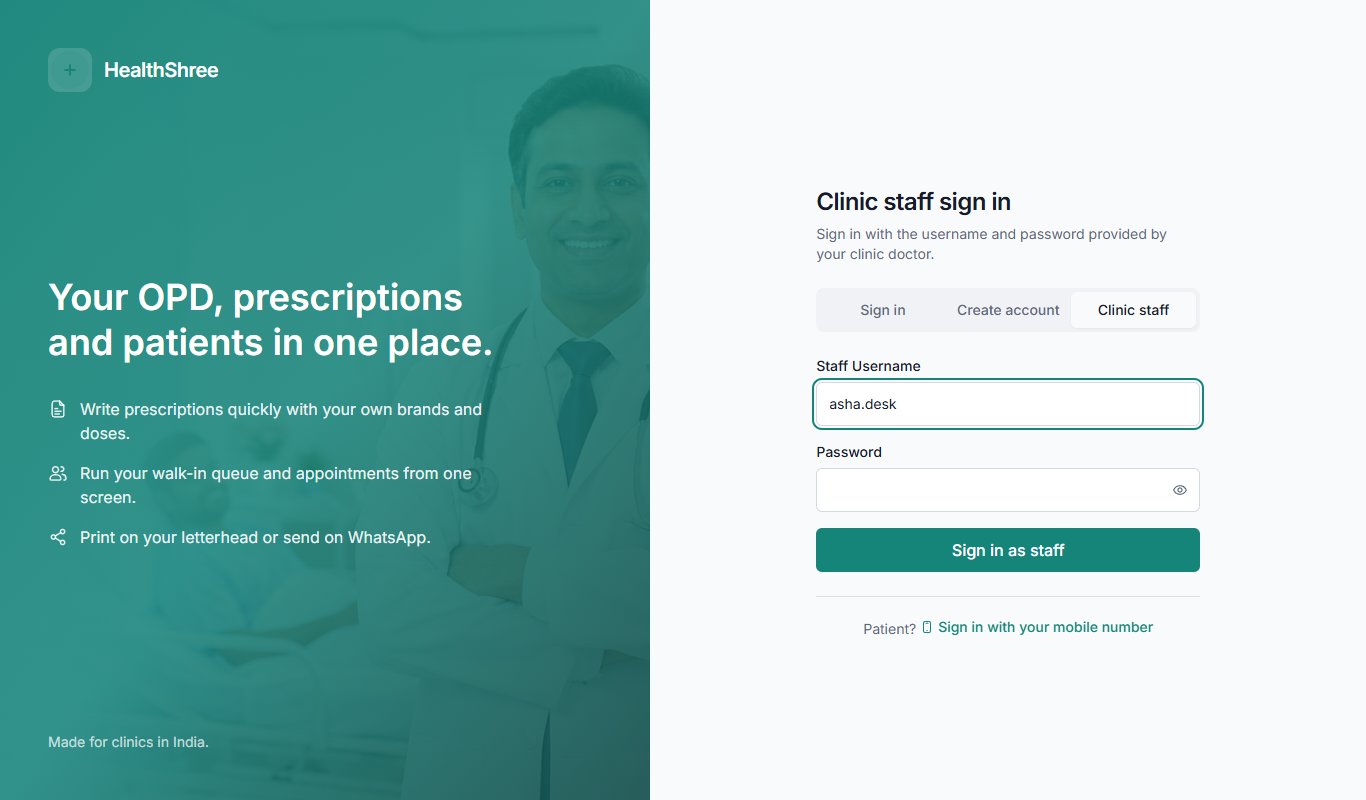
Staff land on the Walk-in Queue. They work for your clinic only, and they can't change your letterhead or doctor settings.
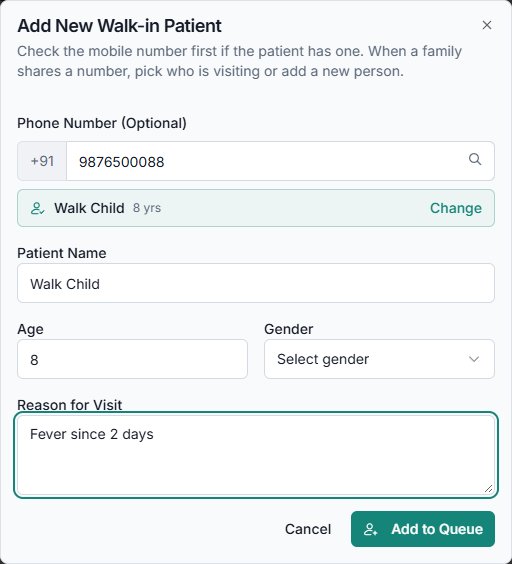
How a walk-in moves through the queue
- 1
Front desk
Add Walk-in Patient
Mobile number first, then the right family member, then the Reason for Visit.
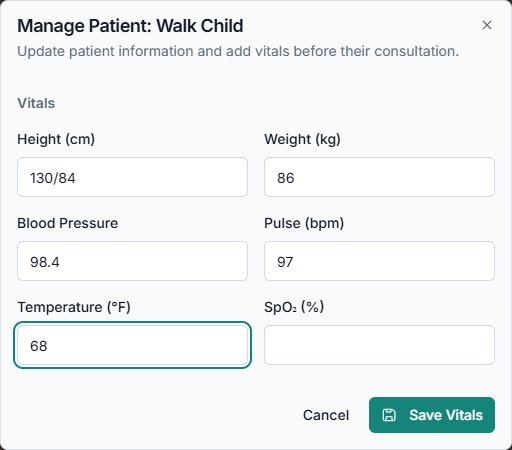
- 2
Front desk
Manage → vitals
Record BP, pulse, temperature and more on the patient's card.
- 3
Front desk or you
Call Next
Moves the patient to Now Serving.
- 4
You
Consult
Opens the pad with the reason and vitals already filled in.
- 5
You
Finish & save
Saves the prescription; the visit leaves the queue.
- 6
Anyone
Cancel
If the patient leaves without being seen.
Working in the background for you
- If the desk corrects a vital after you opened the pad, choose Consult again: the same draft reopens with the correction. Anything you typed or cleared yourself is kept.
- Consult always reopens the same draft for a patient, so a double click never makes two prescriptions.
- If the desk cancelled a patient a moment ago, Consult tells you so instead of reopening them.
- Registered patients can also join your queue from their own HealthShree app and receive a token number.
- Complete on a card closes a visit you saw without writing a prescription in HealthShree.
6. Clinics, appointments and follow-ups
Working hours, booking requests, cancellations, follow-ups due.
Patients can book you only inside the working hours you set for each clinic, in 30-minute slots, and every booking waits for you to accept it.
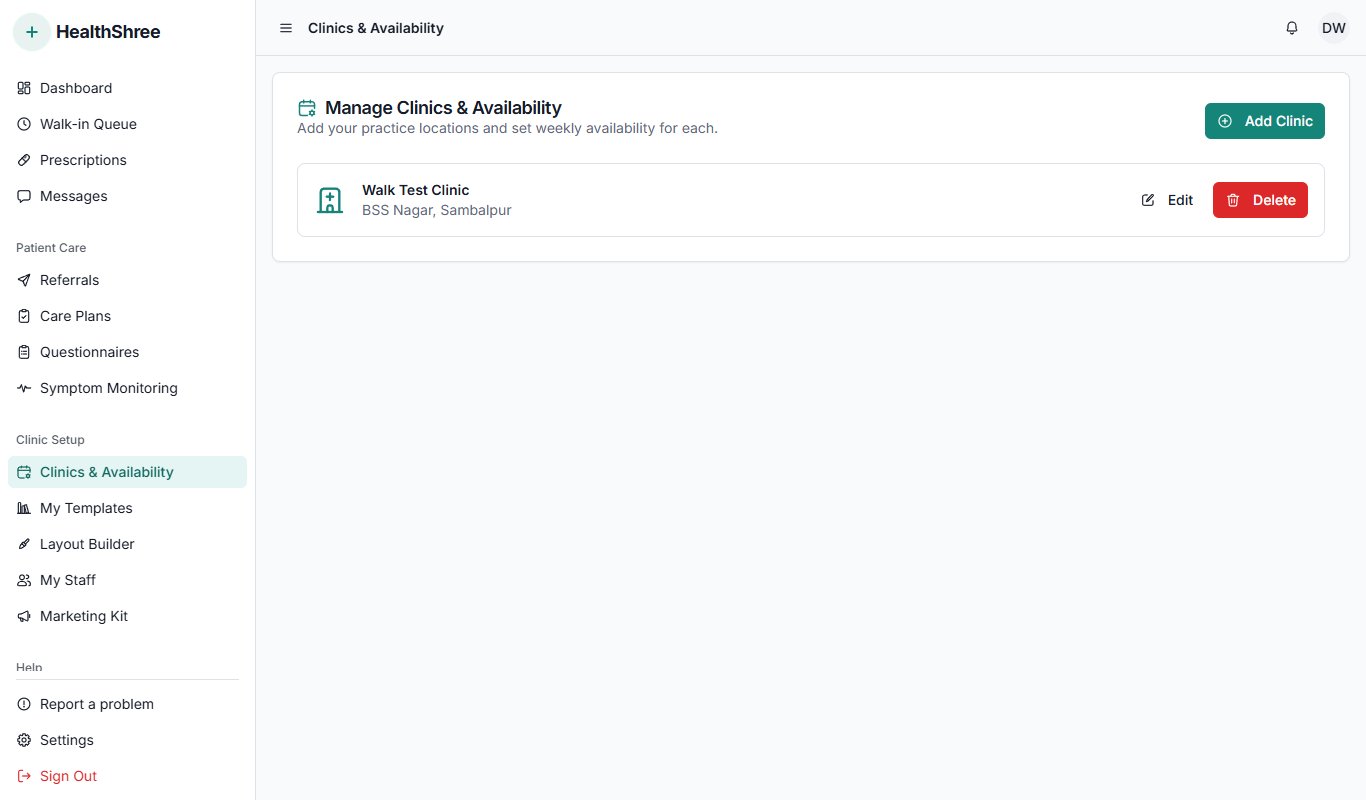
Set your clinics and hours
- Open Clinics & Availability and choose Add Clinic.
- Enter the clinic name and address.
- Set the hours for each day. New clinics start with Monday to Friday, 9:00 to 17:00, and weekends off: change them to your real timings.
- Save. Add a clinic for each place you consult.
Appointment requests
When a patient books, the request appears under Appointment requests on Today. Choose Accept or Decline; the patient is notified either way. Accepted visits appear under Today's schedule on their day.
| When the patient… | You see |
|---|---|
| cancels | A notification with their reason, if they gave one. The slot is freed. |
| reschedules | A notification with the old and new times. The visit goes back to a request, so you accept the new time. |
Your staff see every booking under Appointments in their menu (you reach it from View Booking on a booked patient's queue card). A confirmed appointment can be cancelled there; HealthShree asks to confirm first, then tells the patient.
Follow-ups due
Every follow-up you set on the pad appears under Follow-ups due on Today on that date. Check it each morning to see who should come back, and call those who don't.
7. Your prescription layout
Layout Builder: paper, letterhead, logo, footer, pre-printed pads.
Your letterhead is filled from your profile automatically, so a new account prints a clean prescription from day one. Use the Layout Builder only to change how it looks.
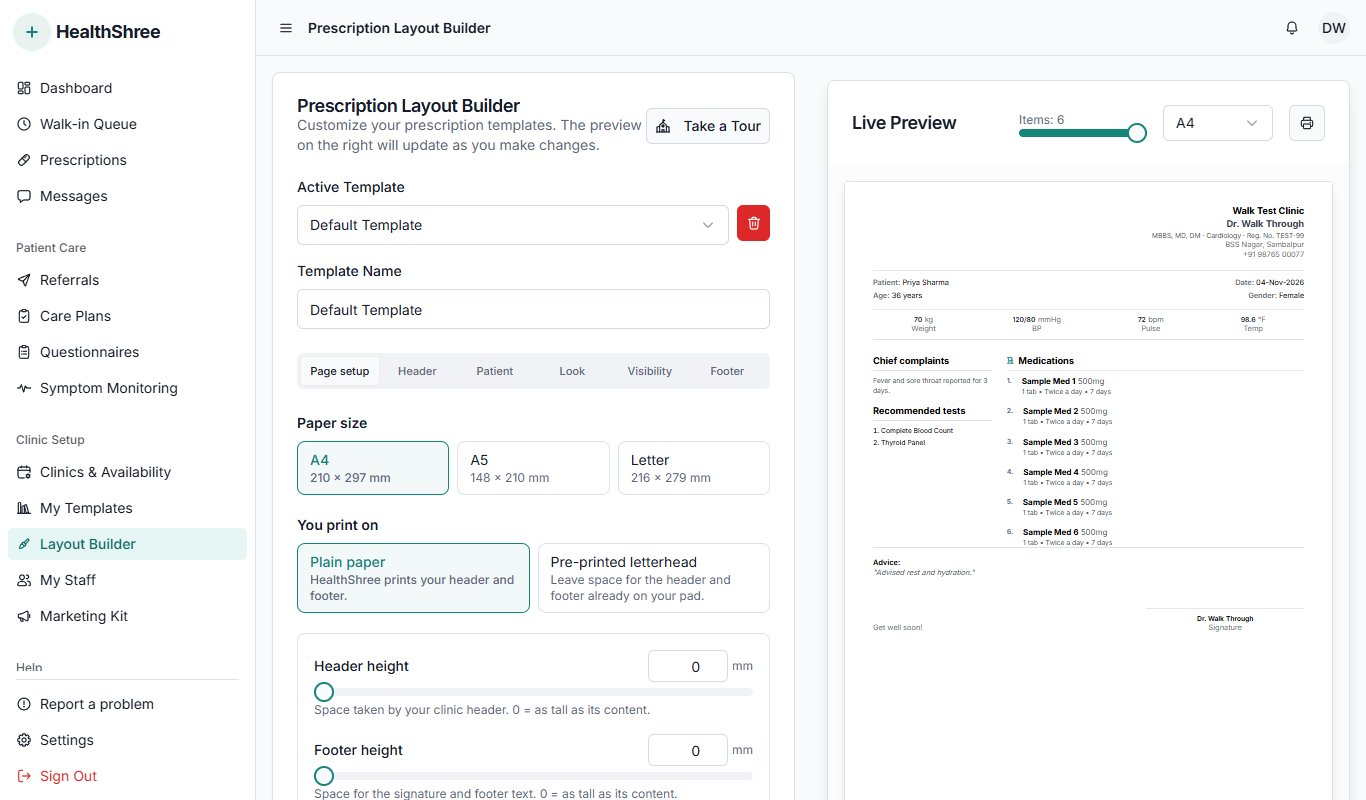
Open Layout Builder from the menu, or Edit beside Letterhead on the pad. The live preview updates as you change things, and the Items slider shows how a longer prescription fills the page. Take a Tour walks you through it.
| Tab | What you set |
|---|---|
| Page setup | Paper size (A4, A5 or Letter) and what you print on: plain paper, or a pre-printed letterhead. |
| Header | Header layout, clinic name, doctor name, specialty, address, contact, and a logo by its web address (URL), with size and shape. |
| Patient | Whether to print the patient's age and gender. |
| Look | Font sizes for medicine names, text and headings; medicines and tests side by side; an optional watermark. |
| Visibility | Which sections and vitals print: symptoms, tests, advice, pharmacist notes, and specialty items such as visual acuity, the Rx table or dental procedures. |
| Footer | The name above Signature, a note such as "Get well soon!", and a seal stamp by its web address. |
Printing on your own pre-printed pad
- In Page setup, choose your paper size and, under You print on, choose Pre-printed letterhead.
- Measure your pad with a ruler: the height of the printed header at the top and the footer at the bottom, in millimetres. Enter them as Header height and Footer height.
- Turn on Show my header in the preview to see where your printed header sits.
- Print one test page on the real pad and adjust a few millimetres if needed.
Several layouts
Keep more than one layout, for example one per clinic: choose under Active Template, rename under Template Name, and pick one per visit from Letterhead on the pad.
Two rules that protect you
Your prescriptions always print your name and registration number. If a layout carries another doctor's name or seal, HealthShree prints yours instead.
Only you can change your layout; your staff cannot.
8. Make it faster: templates and preferences
Medicine templates, section templates, brands, pad settings.
Ten minutes of setup saves the most time later: tell HealthShree your brands, save your common prescriptions as templates, and hide the sections you never use.
Templates
| Kind | How to make it | How to use it |
|---|---|---|
| Medicine template (e.g. viral fever) | Fill it once on the pad and choose Create Template from Current, or build it in My Templates | Add from template in Medicines |
| Section template | Templates button on Complaints, Examination, Diagnosis or Advice | The same button fills your usual wording |
| Your usual dose | Nothing to do: HealthShree learns as you prescribe | Suggested automatically next time |
Settings worth filling once
| Setting | What it does |
|---|---|
| My Profile | Your name, specialty, qualifications and registration details. These print on your prescriptions. |
| Preferred manufacturers | Brands from these companies come first in medicine search. |
| Preferred brands | Your first-choice brand for a generic. |
| Consultation pad | Show only the sections you use, add a section from another specialty, and add your own fields. |
| Preferred pharmacies and labs | Where you can send prescriptions and tests (section 9). |
You can change all of these without leaving a consultation: Settings on the pad opens a side panel with Pad, Templates, Pharmacy & labs, Brands and Clinics tabs.
9. Pharmacies, labs, referrals and ongoing care
Send to linked pharmacies and labs, refer, message, care plans.
Link the pharmacies and labs you work with once, and each prescription or test order can go to them from the pad in one choice.
Pharmacies and labs
- The pharmacy or lab needs its own HealthShree account.
- In Settings, add it under Preferred pharmacies or Preferred labs (or choose Link a pharmacy / Link a lab on the pad).
- On the pad, pick it under Send to pharmacy or Send tests to lab before you finish.
The pharmacy sees the prescription in HealthShree, including your note for the pharmacist, and can tell the patient when the medicines are ready for pickup. The lab sees the test order.
Referrals
Refer from the pad with Refer to another doctor, or open Referrals and choose Create New Referral: pick the patient, the doctor you are referring to, and the reason. The page lists the referrals you have sent and received.
Messages
Messages is a simple chat inside HealthShree, for example with a pharmacy about a prescription.
Ongoing care
| Page | Use it for |
|---|---|
| Care Plans | A plan for a long-term condition, for example "Diabetes Management": the patient, what to do and how often ("Daily", "Twice a week"), its status, and private notes. |
| Questionnaires | Your own forms, for example a new-patient history form. |
| Symptom Monitoring | Symptoms your patients log in their app, with filters and a severity trend over their last 7 logs. |
Private patient tags
Use + Tag under the patient's name on the pad to note things like "VIP" or "poor compliance". Tags are private to you and your staff: other doctors who see the same patient never see them.
10. Marketing kit
Ready-made posts, posters and your visiting card.
The Marketing Kit makes ready-made posts, WhatsApp statuses, posters and a visiting card with your name, clinic, timings and photo already filled in, so you can share health tips without a designer.
Posts and posters
- Open Marketing Kit → Posts & posters.
- Start from a template. Templates for your specialty are shown first; cardiology and ENT have the most, including ones in Odia.
- Edit in the panel: Details (name, clinic, phone, address, timings, photo, QR code; From profile fills them for you), Text (the template's words) and Design (colour and size).
- Choose Share to send it to WhatsApp, Facebook or X, or save the image. On a computer, where sharing isn't available, the image is downloaded instead.
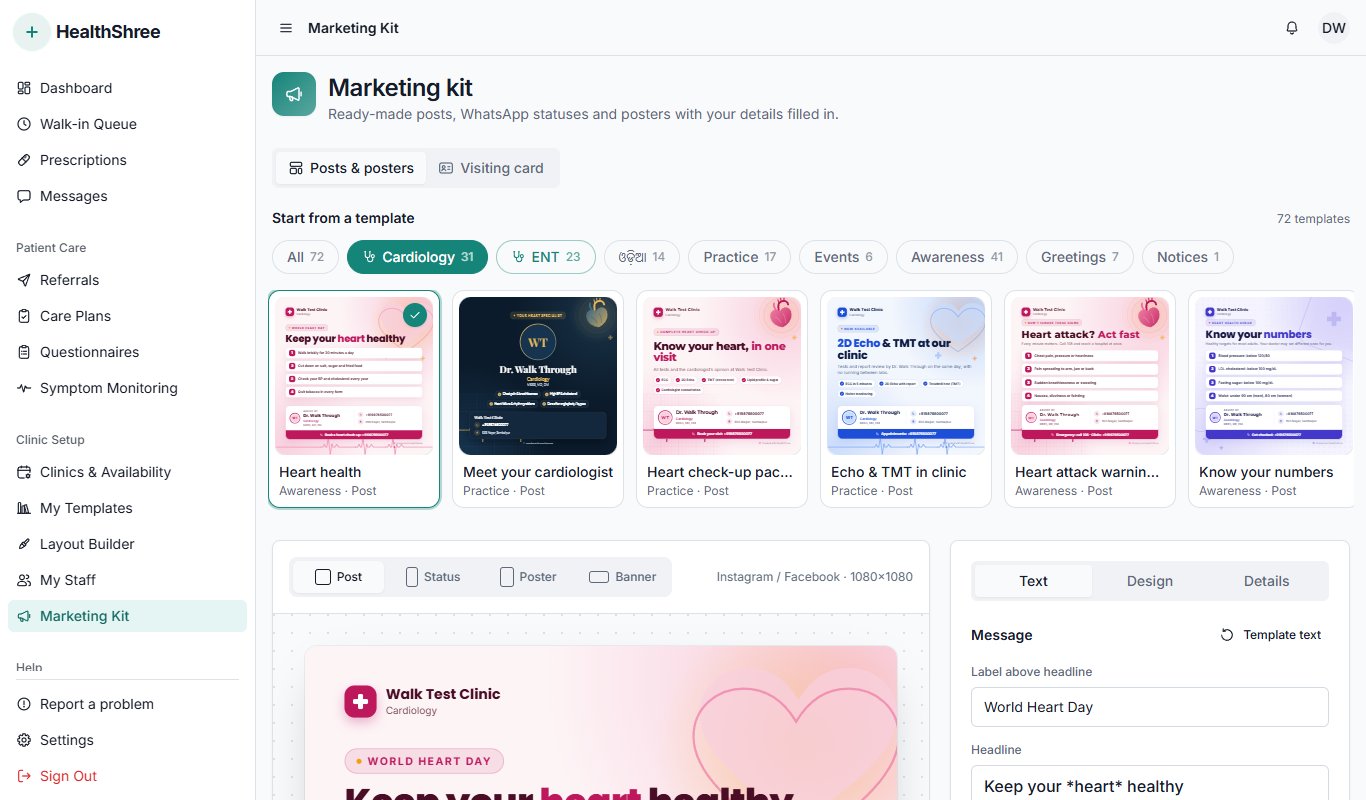
Without a photo, your initials are used. Choose Use profile photo to use the one in your profile.
Visiting card
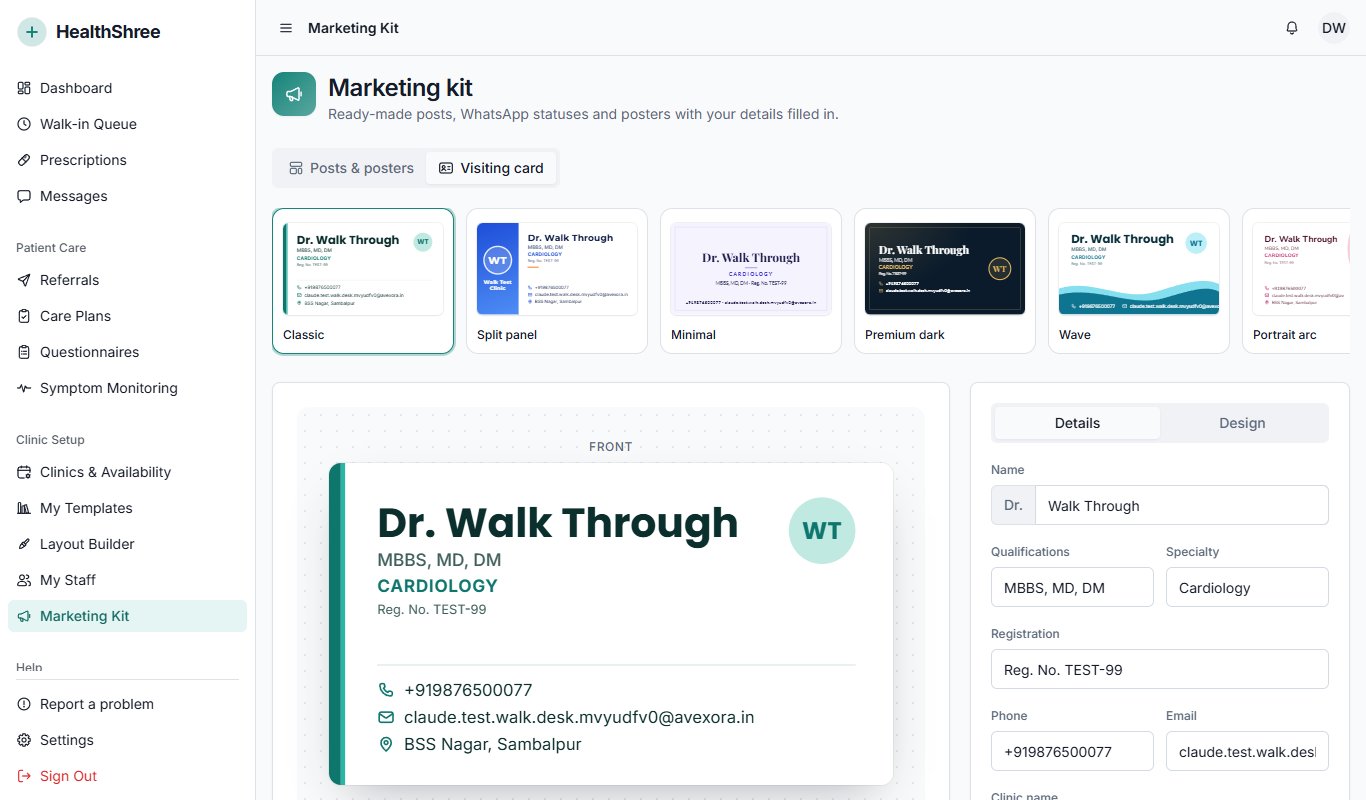
The Visiting card tab makes a two-sided card: your name with the Dr. prefix, qualifications, specialty, clinic, address, phone, email, languages and a QR code. Fill from clinic copies your clinic details in.
Before you post
Templates carry general health messages. Read each one before posting to be sure it says what you would tell your own patients, and ask a native speaker to check Odia or Hindi wording you are unsure of.
11. Your account and data
Profile, notifications, download or delete your data, report a problem.
Your profile drives your letterhead, and you can download or delete your data at any time from Settings.
Your profile
In Settings → My Profile, update your name, specialty, qualifications and registration details. The Dr. in front of your name is fixed; type only your name. Your email address can't be changed.
Good to know
If you change your registration number or medical council, your account is checked again before you can keep prescribing, just like at sign-up.
Notifications
The bell at the top shows new events, such as appointment requests, cancellations and reschedules. A number on it counts the unread ones.
Download your data
In Settings → Your data, choose Download for a file of what HealthShree holds about you and the prescriptions you wrote. Very large sections are cut off and marked as such in the file, and uploaded files are listed by name rather than included.
Delete your account
In the same card, ask to delete your account and type DELETE to confirm. Your account is switched off at once and the HealthShree team completes the request. Until then you can sign in and choose Keep my account to undo it.
Prescriptions you wrote are medical records and are kept for as long as the law requires, with your name and registration on them; your sign-in and other profile details are removed.
Report a problem
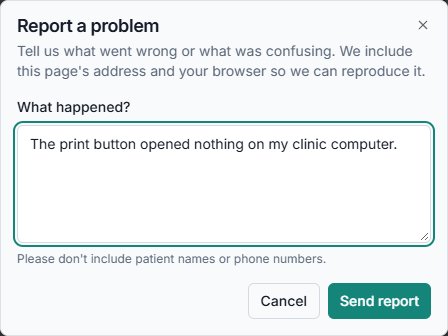
Something not working? Choose Report a problem at the bottom of the menu (on a phone, at the top of the page), describe what happened and send. The team sees which page you were on, so you don't need to explain where.
12. Safety, voice and your responsibilities
What the checks cover, voice input, privacy.
HealthShree helps you write and keep records faster, but every clinical decision and every printed word remains yours: check what the app suggests before you sign.
What the safety checks cover
| Checked | Not checked |
|---|---|
| The same medicine prescribed twice | Doses for age, weight or kidney function |
| A medicine matching the patient's recorded allergies | Pregnancy and breastfeeding |
| Known interactions between the medicines on this prescription | Interactions for medicines without interaction data (the pad tells you which) |
An allergy warning only works if the allergy is recorded for the patient.
Voice input
Speak prescription (top of the pad) and Dictate (on Complaints and Advice) let you speak instead of type. The recording is sent to Google's Gemini AI service, which turns it into text and fills the pad.
Voice input is new
Read everything it fills in before you finish. Tell the patient if you are recording in front of them.
Patient privacy
- Give every staff member their own login; never share yours.
- Sign out on shared computers (Sign Out at the bottom of the menu).
- Patient tags and care-plan notes are private to your clinic, but the prescription itself goes to the patient and, if you send it, to the pharmacy.
13. A day with HealthShree
A simple routine for morning, OPD and evening.
| When | What to do | Where |
|---|---|---|
| Morning | Check Follow-ups due and Appointment requests; accept or decline | Today |
| Clinic opens | Staff add walk-ins and record vitals as patients arrive | Walk-in Queue |
| Each patient | Consult → complaints → medicines → Preview → Finish & save → Print or WhatsApp | Consultation pad |
| Between patients | Finish anything left in Drafts to finish | Today |
| End of day | Look at Prescriptions for anything you meant to edit; leave no drafts behind | Prescriptions |
| Weekly | Turn your most common prescriptions into templates; share one health post | My Templates, Marketing Kit |
14. Troubleshooting and questions
Quick answers to common problems.
| Question | Answer |
|---|---|
| I forgot my password. | On the sign-in page, type your email, then tap Forgot password? to get a reset email. |
| My account still says it is under review. | The team is checking your registration. Tap Check again later; no email is sent. |
| Print does nothing. | Your browser blocked the print window. Allow pop-ups for HealthShree and try again. |
| The printed text overlaps my pad's header. | Set Pre-printed letterhead and the header height in mm in the Layout Builder (section 7). |
| I left a consultation half-done. | It is saved as a draft. Open it from Drafts to finish on Today, or the Drafts tab in Prescriptions. |
| I made a mistake on a printed prescription. | Open it, choose Edit, correct it and Save changes, then print again. The earlier version stays in History. |
| Two family members share a phone. | Pick the right person in the list, or Add another person on this number (section 2). |
| A medicine is missing from search. | Type its name and add it yourself; you can prescribe it straight away. |
| My staff can't sign in. | They must use the Clinic staff tab with the username you created in My Staff, not an email. |
| The desk changed the BP but my pad shows the old value. | Choose Consult again on the queue card: the same draft reopens with the correction. |
| Does it work without internet? | No. Use a steady connection; drafts save as you go, so a short drop loses little. |
| Which browser should I use? | Google Chrome on a laptop or desktop works best. |
| Something else is wrong. | Use Report a problem (section 11). |
Still stuck? Sign in and use Report a problem in the menu.